
|
drive.web
savvy-SFD
How do I get It?
|
The savvy user has two options for getting SFD:
Once purchased, all the features of SFD will be available. Please note, each savvy-SFD user requires a separate license (even if they are on the same computer). So, when you decide to upgrade SFD, make sure the license is installed on the desired computer as the license cannot be moved after installation.
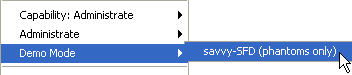
In the free download of savvy, the Demo Mode is enabled by simply checking the item in the File Menu.
Regardless of your method of purchase, the first step in getting SFD is adding the upgrade to your Shopping Cart.
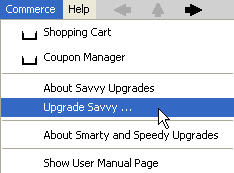
Under the Commerce Menu, select the Upgrade Savvy... menu item.
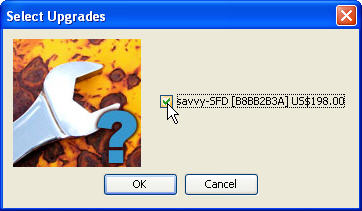
A dialog box will be displayed. Check the savvy-SFD box, then click the OK button.
After clicking the OK button, your Shopping Cart will appear and you will have three options for purchasing the upgrade.
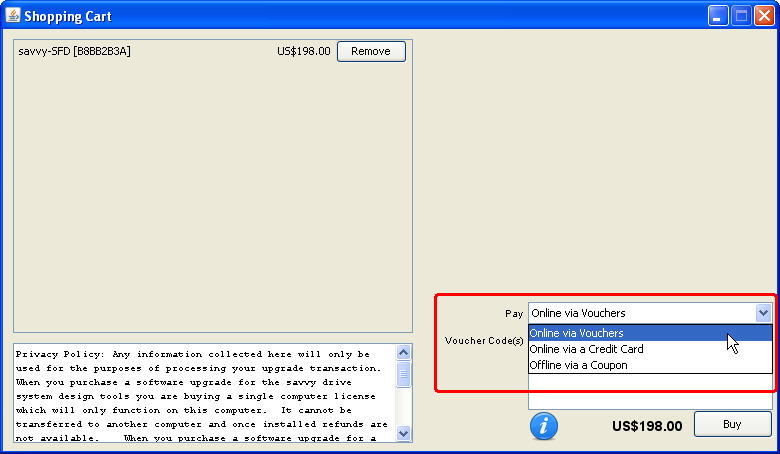
Vouchers are e-mailed from the drive.web E-Commerce server to the savvy User when ordered from your drive.web distributor. Vouchers may only be redeemed once and should be treated as cash.
Buying the savvy-SFD Upgrade using vouchers requires:
In the example below, two Voucher Codes have been entered in the appropriate field to obtain the SFD Upgrade. Voucher Codes are NOT case-sensitive.
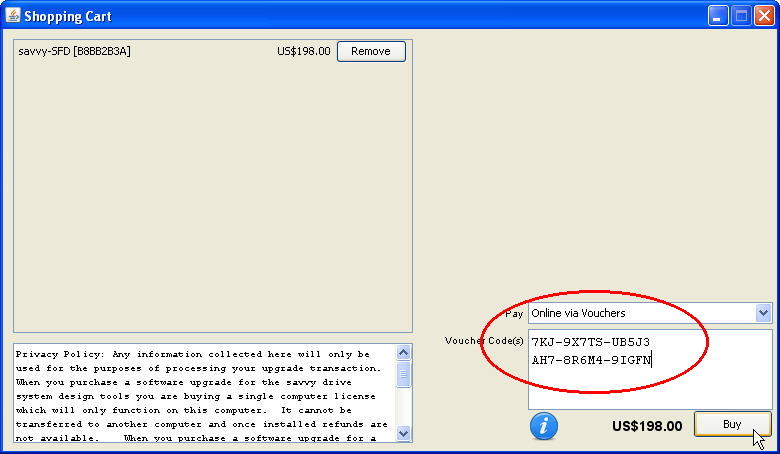
Click the Buy button to redeem your vouchers with the drive.web E-Commerce Server.
Buying the savvy-SFD Upgrade using vouchers requires:
In the example below, two Voucher Codes have been entered in the appropriate field which is sufficient to obtain the SFD Upgrade. Voucher Codes are NOT case-sensitive.
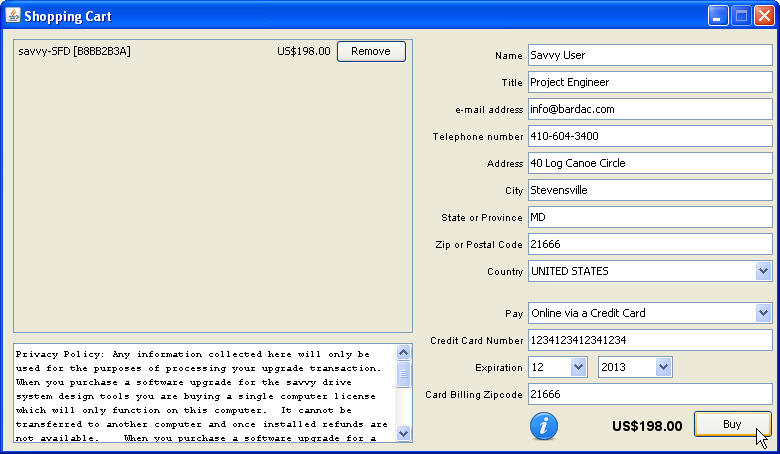
Click the Buy button to have the drive.web E-Commerce Server charge your credit card. A successful transaction will be confirmed to the e-mail address entered on the form.
If you are unable to connect your computer to the Internet to purchase the SFD Upgrade, coupons are the solution. Coupons are different from vouchers. Whereas vouchers can be applied to any computer, coupons are associated with a specific computer.
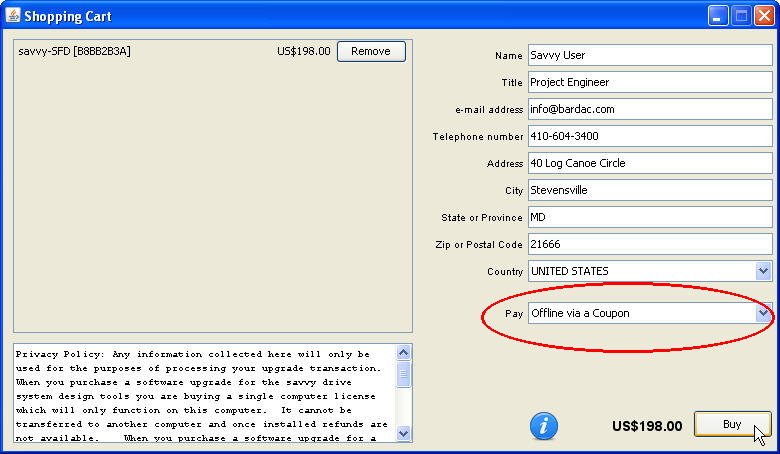
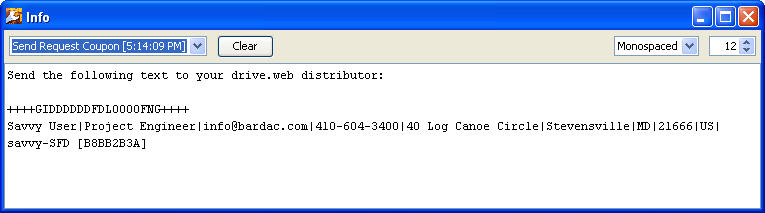
When you click the Buy button, an Info window will be displayed with information which is required to generate a coupon. Forward this information via e-mail to your drive.web distributor.
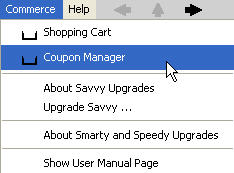
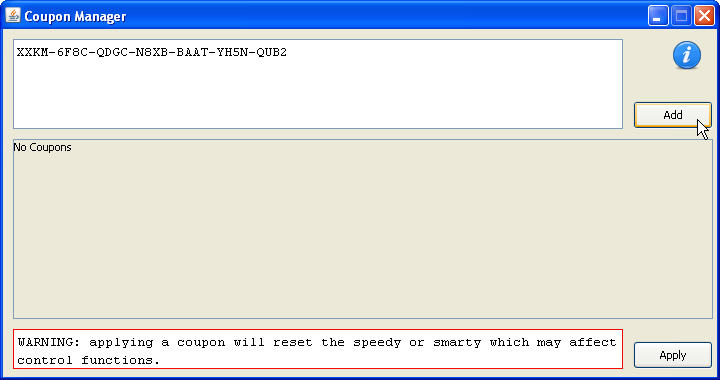
Once the coupon has been returned, it may be processed using the Coupon Manager. To use the coupon, select Coupon Manager from the Commerce Menu. Note, coupon codes ARE case-sensitive. After entering the code, click the Add button.
 |
 |
 |
After adding the coupon, you should see a savvy-SFD item in the coupon list in the lower portion of the window.
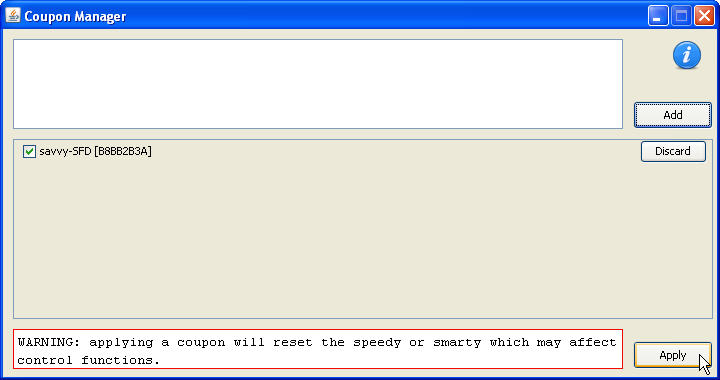
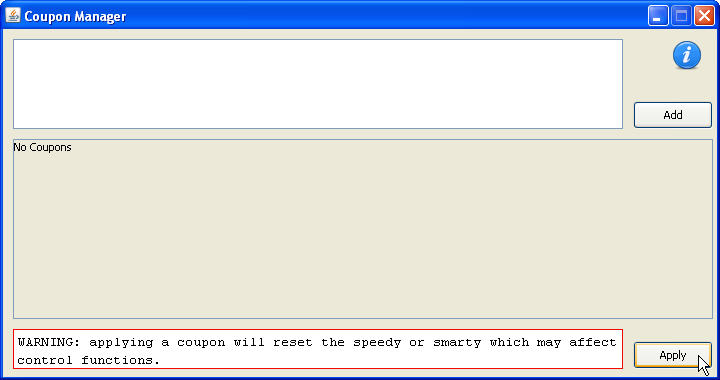
Then, to enable savvy-SFD, click the Apply button. The coupon will disappear from the Coupon Manager window.
If for some reason you cannot send/receive e-mail with the contents of the Info window (see previous section), to generate a coupon, your drive.web distributor needs to know the savvy ID of your computer.
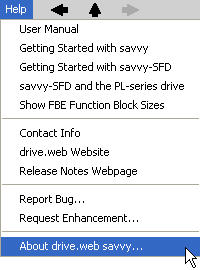
To obtain your savvy ID, select About drive.web savvy... in the Help Menu. The number is between the displayed brackets [ ] in the Select Upgrade... dialog box.
or in the
 |
|
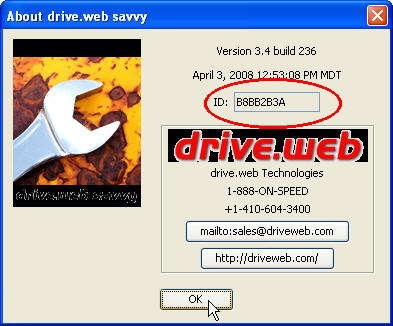 |
If for some reason you cannot send/receive e-mail with the contents of the Info window, to generate a coupon, your drive.web distributor needs to know the savvy ID of your computer.
To check the status of your savvy installation for SFD capabilities, select the Upgrade Savvy... item in the Commerce Menu. The Select Upgrades dialog box will appear.
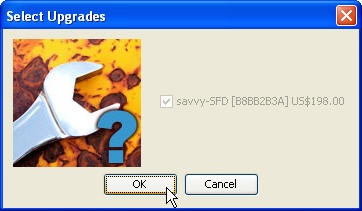
If the savvy-SFD selection is grayed-out, you have savvy-SFD capabilities.
You are now ready to use savvy-SFD!